
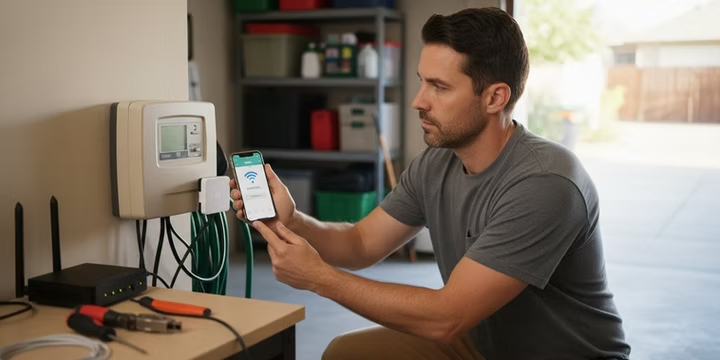
Upgrading your sprinkler system with smart technology is a brilliant move for both your lawn and your wallet. Smart controllers, like the popular Rain Bird ESP ME series, can slash water waste by tailoring irrigation to real time weather conditions. For a bigger-picture look at the benefits and savings, see our smart irrigation systems guide. In fact, swapping a basic timer for a smart controller can save an average home up to 15,000 gallons of water each year. Rain Bird even suggests its smart scheduling features can cut water use by as much as 50 percent.
This guide provides a clear, step-by-step process for connecting Rain Bird ESP ME to WiFi, helping you unlock these savings. The connection process is straightforward: you simply insert a Rain Bird LNK2 WiFi Module into the controller and use the smartphone app to link it to your home’s 2.4 GHz network. If you’re still choosing between brands or features, check our Wi-Fi sprinkler controller guide for Lubbock. We will walk through the installation and setup process and then cover the most common troubleshooting snags so you can get your system online smoothly.
First Things First: Compatibility and Network Checks
Before you even open the box for your WiFi module, a couple of quick checks will save you a lot of time and potential headaches.
Confirm Your ESP ME Controller is WiFi Ready
Not all ESP ME controllers can be upgraded. Rain Bird’s LNK2 WiFi module is designed for ESP ME and ESP ME3 controllers manufactured after November 2, 2016. The easiest way to check for compatibility is to look for a small WiFi symbol printed on the controller’s front panel. If you see that icon, you are good to go. The newer ESP ME3 models were built with WiFi in mind and are fully compatible. If your controller is older and lacks the symbol, you may need to upgrade the controller to enjoy remote access.
Verify You Have a 2.4 GHz WiFi Network
Like most smart home devices, the Rain Bird LNK2 WiFi module requires a 2.4 GHz WiFi network to operate. Most modern routers broadcast both 2.4 GHz and 5 GHz networks. The 2.4 GHz band offers a longer range, which is better for devices like a sprinkler controller that might be in a garage or basement. Make sure your phone is connected to your 2.4 GHz network before you begin the setup process, as the app will pass these network details to the controller. The module cannot connect to 5 GHz networks.
Step by Step: Connecting Rain Bird ESP ME to WiFi
With the preliminary checks done, you are ready for the main event. Here is how to get your controller connected.
Step 1: Install the LNK2 WiFi Module
The LNK2 WiFi Module is the small device that enables connecting Rain Bird ESP ME to WiFi. Installation is straightforward.
- Open the front panel of your ESP ME controller to find the accessory port.
- Firmly insert the LNK2 module into the port until it is fully seated.
- Once plugged in, the module will power on. After a few seconds, its LED light should begin blinking blue. A blinking blue light means the module is in “Quick Pair” mode and is ready to be discovered by the app.
Step 2: Add the Controller in Your Rain Bird App
With the hardware installed, the rest of the setup happens on your smartphone.
- Download the App: Make sure you have the latest version of the official Rain Bird app (often called Rain Bird 2.0) from the Apple App Store or Google Play Store. Using an up to date app is crucial, as older versions may not be compatible with the LNK2 module or newer controllers like the ESP ME3.
- Add Controller: Open the app and create or log into your Rain Bird account. Tap the “Add Controller” button, which is usually a yellow plus icon.
- Follow the Wizard: The app will guide you through the setup wizard. You will select your controller model (e.g., ESP ME3) and enter your home’s 2.4 GHz WiFi name and password. The app may ask for permissions like location access, which is required by newer phone operating systems to scan for WiFi networks.
- Firmware Update: The app will automatically check if your LNK2 module needs a firmware update. If it does, allow the update to proceed. This ensures full compatibility and can take a few minutes.
Once the process is complete, the module’s LED light should turn green, and the controller will appear as “online” in your app, ready for remote control. To maximize weather responsiveness and automatic shutoffs, pair your controller with a rain/freeze sensor. See our rain/freeze sensor installation guide for details. If you run into trouble, don’t worry. Sometimes the process of connecting rain bird esp me to wifi needs a little troubleshooting. If you prefer to have an expert handle it, our professional irrigation services in Lubbock can manage the installation and configuration for you.
Common Sticking Points and How to Solve Them
If your controller doesn’t connect on the first try, one of these common issues is likely the culprit.
Error: “Please Connect to the Rain Bird Network”
This error means your phone failed to connect to the module’s temporary setup network. Here is how to fix it:
- Check Pairing Mode: Ensure the module’s light is blinking blue (for LNK2) or alternating red and green (for older LNK modules), indicating it’s broadcasting.
- Enable Location Services: Modern iOS and Android phones require location permissions for an app to scan for local WiFi networks. Grant the Rain Bird app this permission.
- Restart Your Phone: For iPhones running iOS 13 or later, a simple restart can often clear network glitches and resolve this specific error. If pairing still fails after these steps, follow our Irrigation Controller Repair DIY Guide for deeper diagnostics.
Issue: The Green Light Keeps Blinking But Never Connects
A blinking green light means the module is trying to connect to your WiFi router but isn’t succeeding. This often happens because your smartphone automatically switches back to your home WiFi too early in the setup process, interrupting the configuration.
The solution is to restart the setup. You may need to reset the module back to its pairing mode. Make sure your phone stays on the correct network throughout the entire process as prompted by the app.
How to Reset the WiFi Module to Quick Pair Mode
If you change your WiFi password or the setup fails, you may need to perform a reset.
- Press and hold the small button on the side of the LNK2 WiFi module for about five seconds.
- The LED will start blinking blue again, confirming it is in Quick Pair mode and ready for a fresh setup.
Important: Resetting the module only clears its network settings. Your watering schedules stored on the controller will be retained. After resetting, you should also delete the old controller from your Rain Bird app before trying to add it again.
General Troubleshooting for a Controller That Won’t Connect
If your controller goes offline after a successful setup, here are the most common causes:
- Weak WiFi Signal: Your controller may be too far from your router. Use the Rain Bird app to check the WiFi signal strength. If you see only one or two bars, the connection may be unstable. Consider moving your router closer or installing a WiFi range extender.
- Changed WiFi Password: If you updated your router or WiFi password, the controller can no longer connect. You will need to reset the module and complete the setup for connecting rain bird esp me to wifi again with the new credentials.
- Internet Outage: Make sure your home internet service is working. If your router is offline, the controller cannot reach the Rain Bird cloud servers.
For tricky network issues or if you suspect a hardware problem, getting a professional diagnosis is the fastest path to a solution. The irrigation specialists at M&M Sprinklers are experts in smart controller technology and can quickly identify and fix connectivity problems in the Lubbock area. Ask about our Maintenance Plans for seasonal Wi-Fi and firmware checks.
FAQ: Connecting Rain Bird ESP ME to WiFi
What is the first thing to check if my Rain Bird ESP ME won’t connect to WiFi? First, confirm your controller is a compatible model manufactured after November 2, 2016 (look for the WiFi symbol). Second, ensure you are attempting to connect it to a 2.4 GHz WiFi network, not a 5 GHz network.
Will I lose my watering schedules if I reset the LNK2 WiFi module? No. Resetting the WiFi module only erases the network information (SSID and password). All of your irrigation programs and zone settings are stored in the controller itself and will not be affected.
Why does the Rain Bird app need my location to connect to WiFi? Newer versions of Android and iOS require apps to have location permission to scan for and connect to nearby WiFi networks. It is a security feature of the phone’s operating system, not a specific requirement from Rain Bird to track your location.
What does a blinking blue light on the LNK2 module mean? A blinking blue light indicates the module is in “Quick Pair” mode. This means it is broadcasting its own temporary WiFi network and is ready to be set up through the Rain Bird mobile app.
My controller is in the garage where the WiFi signal is weak. What can I do? A weak signal can cause the controller to disconnect frequently. In the Rain Bird app, check the WiFi signal strength under the controller’s settings. If it’s low (e.g., one bar), you should try moving your router closer to the controller or installing a WiFi range extender near the garage to boost the signal. For broader system optimization and water savings, consider a professional irrigation tune-up.
Can I use a guest network for my Rain Bird controller? Yes, you can connect the controller to a guest WiFi network as long as it is a standard 2.4 GHz network with internet access and does not require a secondary login through a web browser (like at a hotel).