
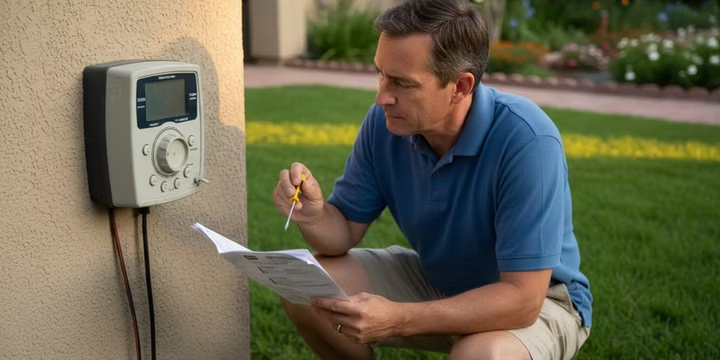
The Toro Vision 1 Series was a popular and reliable sprinkler controller for many years. While it may seem complicated with its dial and buttons, understanding its specific functions is key to keeping your lawn healthy and avoiding water waste.
This guide provides detailed, model-specific instructions for programming, operating, and troubleshooting your Toro Vision 1 Series controller. We’ll cover everything from setting a basic schedule to diagnosing common problems.
Understanding Your Toro Vision 1 Controller
The Toro Vision 1 is a low-voltage controller that sends 24-volt AC signals to your sprinkler valves, telling them when to open and close.
RANKAI_IMG_0
Key Components and Controls
- Main Dial: This is the primary control you’ll use to select different programming functions like setting the time, run times, and water days.
- Digital Display: Shows the current time, date, and all programming information.
- Programming Buttons:PROGRAM: Switches between the available watering programs.+/- Buttons: Increases or decreases values like time, date, and run times.Arrow Buttons (NEXT/BACK): Moves the cursor to the next or previous setting.
- Terminal Strip: Located behind the front panel, this is where your zone valve wires (labeled 1, 2, 3, etc.), common wire (COM), master valve/pump relay (P/MV), and optional rain sensor (SENS) connect.
- Transformer: Steps down your home’s 120V power to the 24 VAC the system uses.
- Fuse: The controller is protected by Two fuses: 1/2 Amp protects the controller’s internal electronics and 1 Amp protects the 24 VAC output. If the display is blank, a blown fuse is a likely cause.
- Battery Backup:A 9-volt alkaline battery slot is provided to save the time and date during a power outage. Your watering programs are stored in non-volatile memory and will not be erased.
Programming Your Watering Schedule: Step-by-Step
Follow these steps precisely to set up a watering schedule on your Toro Vision 1 controller.
Step 1: Set the Current Date and Time
Accurate time and date are critical for your schedule to run correctly.
- Turn the main dial to the SET DATE/TIME position.
- The year will be flashing. Use the +/- buttons to set the current year. Press the NEXT (right arrow) button.
- The month will be flashing. Use +/- to select the current month. Press NEXT.
- The day will be flashing. Use +/- to select the current day. Press NEXT.
- The hour will be flashing. Use +/- to set the correct hour, paying close attention to the AM/PM indicator on the display. Press NEXT.
- The minutes will be flashing. Use +/- to set the current minutes.
- Turn the dial to RUN to save the settings.
Step 2: Set Program Start Times
A “Start Time” is the time of day a program begins watering its first zone. You do not need a start time for every zone.
- Turn the dial to SET START TIME.
- Use the PROGRAM button to select which program you want to set.
- The display will show START TIME 1. Use the +/- buttons to set the time you want the program to begin (e.g., 5:00 AM).
- If you only need one start time for the day, you’re done. If you need a second start time (for a cycle-and-soak schedule, for instance), press the NEXT button to move to START TIME 2 and set another time. The cycle can be started up to 3 times per scheduled watering day.
- To disable an unneeded start time, Position all start time controls to left (OFF).
Step 3: Set Your Watering Days
This function tells the controller which days to water.
- Turn the dial to SET WATER DAYS.
- Use the PROGRAM button to select the program you are setting days for.
- You have three options: Specific Days of the Week: Use the NEXT button to move the cursor to a specific day (M, T, W, etc.). Use the + button to turn that day ON (a water drop icon appears) or the - button to turn it OFF.Interval Watering: Use the NEXT button to move the cursor past Sunday to the INT (Interval) setting. Use +/- to select an interval from 1 (every day) to 7 (every 7th day). A number will also appear next to “DAYS REMAINING,” indicating when the next watering will occur.Odd or Even Days: Move the cursor past the interval setting to select ODD or EVEN day watering. Use the + button to activate your choice.
Step 4: Set Zone Run Times
This is where you set how long each individual sprinkler zone will water for.
- Turn the dial to SET ZONE RUN TIMES.
- Use the PROGRAM button to choose the program you are setting.
- The display will show ZONE 1. Use the +/- buttons to set the desired watering duration in minutes for that zone.
- Press the NEXT button to advance to ZONE 2. Set its run time.
- Repeat this process for all zones you want to include in this program. If you don’t want a zone to run in a specific program, set its run time to 0.
- Once all settings are complete, turn the dial back to RUN. Your schedule is now active.
Manual Operation and Special Features
Manual Watering
- Run a Single Station: Turn the dial to MANUAL OPERATION. The display will show ZONE 1. Use the +/- buttons to set a run time. The zone will start immediately. You can use the NEXT button to advance to another zone and run it manually.
- Run a Full Program Manually: Turn the dial to MANUAL OPERATION. Use the PROGRAM button to select the program you wish to run. Turn the dial back to RUN. The program will immediately start and run through all its scheduled zones.
Rain Delay
This feature pauses your automatic watering schedule for a set number of days.
- Turn the dial to RAIN DELAY.
- Use the +/- buttons to select the number of days (1 to 4) you want to suspend watering.
- Turn the dial back to RUN. The controller will display an umbrella icon and count down the delay period, after which it will resume its normal schedule. To cancel a rain delay, simply turn the dial back to RAIN DELAY and set the days to 0.
Troubleshooting Your Toro Vision 1 Controller
Controller Display is Blank
- Check Power: Ensure the controller is plugged into a working outlet.
- Check Fuse: Unplug the controller. The fuse is located on the main circuit board. Carefully remove it and check if the small wire inside is broken. If it is, replace it with a 0.75 Amp, 250V fast-blow fuse. A blown fuse often indicates a short circuit in your field wiring or a bad valve solenoid.
- Check Transformer: If the fuse is good, the transformer may have failed. A professional can test this with a multimeter. A healthy transformer should output 24 VAC.
A Single Zone Won’t Turn On
This is rarely a controller problem. The issue is almost always in the field.
- Bad Solenoid: The solenoid on the valve for that zone may have failed. See our guide to replacing a sprinkler valve solenoid.
- Wiring Issue: The wire running from the controller to that zone’s valve may be cut or disconnected. A sprinkler wire repair may be necessary.
- Faulty Valve: The valve itself could be clogged or broken internally.
All Zones Won’t Turn On
- Controller in OFF/RAIN DELAY Mode: Check that the dial is set to RUN and that there isn’t an active Rain Delay.
- Master Valve/Pump Issue: If your system has a master valve, it may have failed, preventing water from reaching any of the zone valves.
- Water Supply Off: Ensure the water supply to the sprinkler system is turned on.
Controller is Erased or Not Keeping Time
Your watering programs are stored in permanent memory, but the time and date rely on AC power or the 9V battery backup. If the time resets after every power flicker, replace the 9-volt alkaline battery located on the circuit board. It’s good practice to replace this battery annually.
Upgrading an Old Controller
While the Toro Vision 1 is a workhorse, it lacks modern water-saving features. If your controller fails or you want more convenience, upgrading is straightforward. Most new controllers use the same 24 VAC standard, making them compatible with your existing valves and wiring. Modern smart Wi-Fi controllers offer app-based control, automatic weather adjustments, and leak detection, which can significantly reduce water usage.
Frequently Asked Questions
1. How do I factory reset my Toro Vision 1 controller? To perform a master reset that erases all programming, simultaneously press and hold the +, -, and NEXT (right arrow) buttons for several seconds until the display changes. You will need to reprogram everything from scratch.
2. Why are multiple zones watering at the same time? This can indicate a “stuck” valve in the field or, less commonly, a short in the controller’s internal circuitry. If the problem persists after a reset, the controller may need to be replaced.
3. The schedule starts again right after it finishes. What’s wrong? You have likely set multiple start times in the SET START TIME menu. For most lawns, you only need START TIME 1 to run the entire program. Go back to that menu and make sure Start Times 2, 3, and 4 are all set to OFF.
4. Is the Toro Vision 1 worth repairing? For simple fixes like a fuse or battery, yes. For internal electronic failures, it is almost always more cost-effective and beneficial to replace the unit with a modern, more efficient controller.